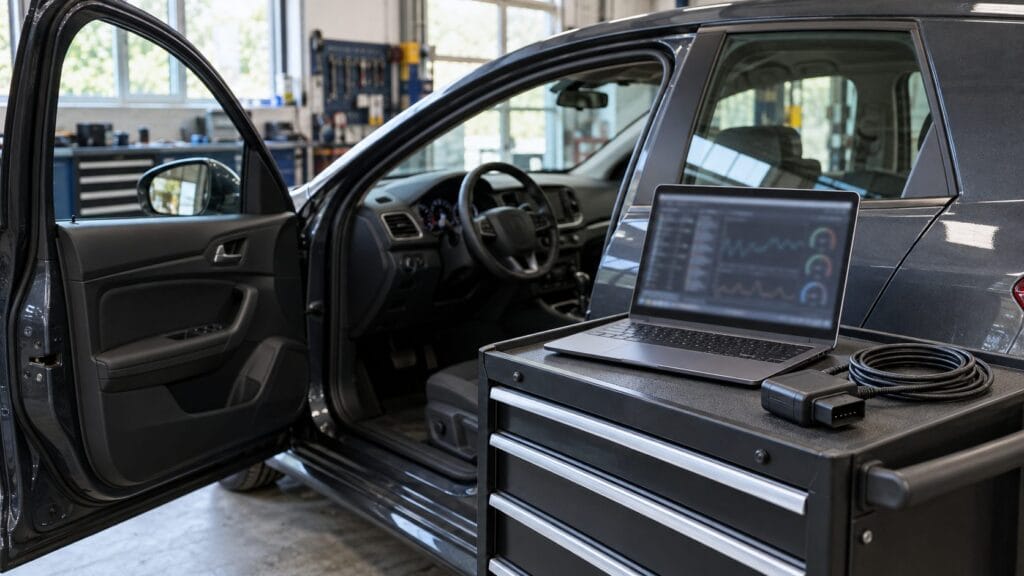
A Ford warning light, a replacement module and a configuration change need different diagnostic approaches. Before choosing a UCDS diagnostic tool, establish whether your job requires reading information, changing settings or rewriting software. Those capabilities are not interchangeable, and a familiar product name does not establish support.
This guide explains the UCDS Pro+ listing, the questions to ask before buying, and a practical workflow for fault codes, module configuration and service functions. It also separates seller-advertised capabilities from the official UCDS platform, because that distinction matters when planning Ford work.
Understand the UCDS Pro+ package first
The SpeedXperts UCDS PRO+ OBD2 tool for Ford was in stock when checked on 28 October 2026. Its listing specifies software V1.27.001 and advertises fault-code reading and clearing, data-stream analysis, module resets and AsBuilt file operations. These are listing claims; support for your exact vehicle and module needs separate confirmation.
Official support should not be assumed. In a warning published by the UCDS team, the developer identifies devices sold as UCDS Pro+ as counterfeit, unsupported devices that do not work with its software. That warning concerns the Pro+ name; this article has not independently authenticated the individual hardware sold by SpeedXperts.
Accordingly, do not transfer official UCDS capabilities, licences or update promises to this package. The developer’s current download page separates software branches by adapter revision. Ask for written confirmation of hardware identity, software provenance and available support before purchase.
Fault codes, configuration and programming are different jobs
| Task | Purpose | What to confirm |
|---|---|---|
| Diagnostic reading | Collect faults, module identification and available data | Access to the affected system on your vehicle |
| Asetukset | Work with supported module settings | Correct values, module compatibility and a recovery plan |
| Service routine | Perform a specified maintenance or repair procedure | The exact routine and its prerequisites |
| Software programming | Write appropriate module software | Approved files, supported hardware and power requirements |
Ford’s FDRS quick-reference guide distinguishes module configuration, programmable parameters and software updates. It documents Ford’s tool, not Pro+ compatibility, but the distinction helps you describe the job accurately when requesting support.
A practical fault-code workflow
1. Record the complaint before connecting
Write down the warning message, when it appears and any recent repairs. Note whether the symptom happens during starting, after warming up or only intermittently. Record the model, production year and engine; share the VIN privately with support when checking coverage.
2. Confirm identification and save the first report
Follow the supplied connection procedure and verify the vehicle and module identification before proceeding. Save the available fault report, including the reporting module and any associated information. If a module does not communicate, record that result instead of assuming it has no faults.
3. Use the code to plan investigation
Consult the Ford diagnostic procedure for the exact vehicle and code. Make a list of the checks it requires and the information your tool can actually supply. Avoid treating the code description as a shopping list for replacement parts. Our check-engine-light starting guide provides broader context for an initial investigation.
4. Compare the result after the repair
Follow the specified repair-verification procedure and retain a second report. Record whether the original symptom remains and whether faults return under the relevant conditions. Clearing a code is an action performed by the tool; confirming a repair requires further checks.
Module configuration and AsBuilt: preserve the starting point
Before changing settings, identify the module and document its existing configuration using the supported backup or reporting method. Name saved files clearly with the vehicle, module and date. Keep the original separate from any edited version so there is an unambiguous record of the starting point.
Ford’s Module Programming User’s Guide describes transferring configuration during module installation and using AsBuilt information when original data cannot be retrieved. It is a reference for the distinction, not a current Pro+ installation procedure. Use current vehicle-specific instructions for the actual repair.
Do not import another vehicle’s settings merely because its model name matches. Obtain confirmation of the required values, the intended function and the procedure for that module. A saved configuration file is useful documentation, but it should not be treated as a guaranteed recovery method for every programming failure.
Service functions: ask for the exact routine
The official UCDS capability page describes diagnostics, configuration and service procedures on its platform. This does not establish which procedures the Pro+ package can perform. Ask about the named operation on the exact module, rather than accepting a general statement that service functions are available.
For example, if a repair requires an initialization or adaptation, ask which procedure applies and what conditions must be met. Do not run an unfamiliar reset simply to see whether it removes a symptom. Safety-critical work requires the appropriate competence, equipment and manufacturer instructions.
A useful support request includes the vehicle details, module reference, current fault codes and a plain-language description of the intended repair. Ask for a response tied to the supplied package. A screenshot of a function on different hardware or a different software release does not confirm your setup.
Resolve software limits and prepare for programming
The store describes a 35-use programming limit. It also warns against online updates while elsewhere advertising regular updates. Those statements need clarification before purchase. Ask which operations consume uses, what remains available afterwards, and which software version is supported. Do not assume unlimited programming or an official update entitlement.
For any supported programming job, Bosch’s reprogramming guidance stresses stable vehicle voltage, a sound electrical system and following manufacturer instructions. Use the specified power-support equipment and settings. If communication or power is unreliable, resolve the problem before starting a write operation.
Frequently asked questions
Will this UCDS diagnostic tool cover every Ford?
No blanket coverage claim is justified. Confirm the vehicle, module, software version and required function together. A model-year range alone is insufficient.
Is Pro+ an official Ford diagnostic interface?
Do not assume so. Ford’s diagnostic software information specifies hardware and licensing requirements for its applications. This listing does not establish that those requirements are met.
What should I do before ordering?
Compare the diagnostic-tools range and read our diagnostic-tool buying guide. Then request confirmation of the specific job, software provenance and support terms. If those answers remain unclear, postpone the purchase.