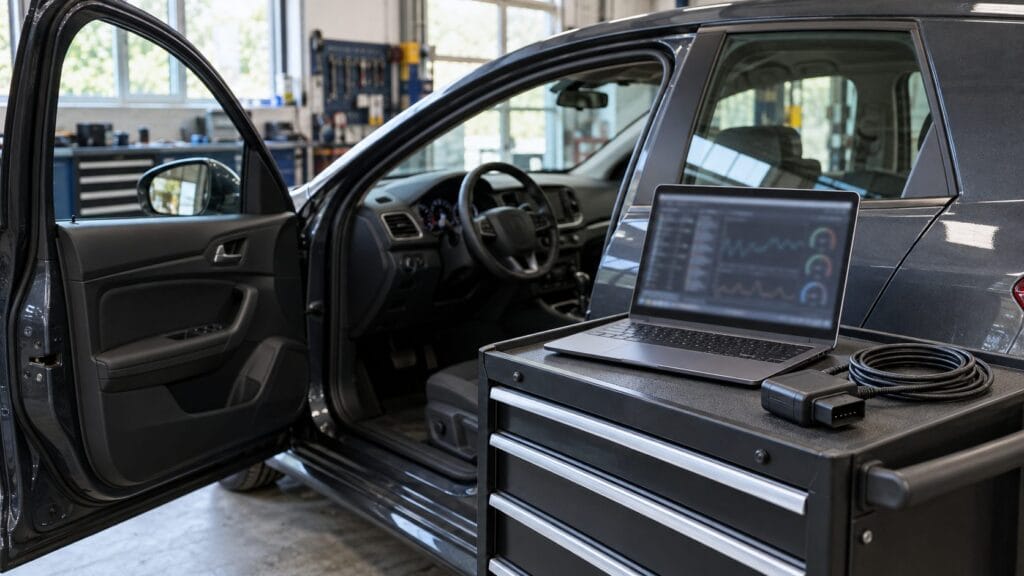
An OP-COM connection problem does not automatically mean the interface is defective. Windows might not detect the USB interface, the software might not recognize it, or the interface might connect to the computer but fail to communicate with the vehicle. The fastest solution is to identify which stage is failing.
Importante: Never perform coding, immobilizer programming or control-module updates while troubleshooting an unstable connection. Begin with read-only functions such as identifying the vehicle, scanning modules and reading fault codes.
First identify where the connection fails
Before changing drivers or software, note exactly what happens:
- Nothing happens when you connect the USB cable: Start with the cable, USB port and Windows Device Manager.
- Windows detects the interface, but OP-COM does not: Check the driver, software configuration and compatibility between the software and interface firmware.
- The interface test succeeds, but the car does not respond: Check ignition position, vehicle selection, battery voltage, diagnostic-port power and the module you are trying to access.
- Some modules connect but others do not: The issue may be vehicle coverage, an incorrect model or engine selection, a blown fuse, wiring damage or a fault on the vehicle network.
Reinstalling software will not repair a powerless diagnostic socket, and checking vehicle fuses will not fix a missing Windows driver.
1. Check the USB cable and laptop connection
Connect OP-COM directly to the laptop rather than through a hub, docking station or extension. Try another USB port and a known-good data cable. An illuminated interface is not proof that data communication is working. Close the software before reconnecting the interface, then wait a few seconds before relaunching OP-COM.
2. Confirm that Windows recognizes the interface
Aperto Device Manager and look under Ports, Universal Serial Bus controllers, or Other devices. A yellow warning symbol means Windows has detected a problem with the device or its driver. Open the device properties and note the displayed error code before making changes.
If the driver is missing or damaged, reinstall it using the package supplied for your interface. Windows may recover a failed installation after you uninstall the affected device, reconnect it and scan for hardware changes. Microsoft’s Device Manager error-code guide explains the appropriate action.
3. Install the correct FTDI driver
Il SpeedXperts OP-COM interface uses an FTDI FT232 and PIC18F458 chipset combination. Use the driver included with the supplied installation package or the driver specifically recommended in the product instructions. A driver intended for a different interface revision can leave the device visible in Windows but unusable in the diagnostic application.
If Windows reports Code 18, 28 or a similar problem, reinstall the driver and restart the laptop. Avoid drivers or modified installers from unverified file-sharing sites. If Windows Security flags a supplied file, verify it with SpeedXperts rather than permanently disabling antivirus protection.
4. Run the OP-COM interface test
Launch the correct OP-COM software version and open its interface or diagnostic settings. Run the interface test before selecting a vehicle. A successful test confirms that the application can communicate with the USB interface; it does not yet confirm communication with the car.
If the test fails while Device Manager reports no problem, close other diagnostic applications and restart OP-COM with the interface connected directly. Confirm that you opened the intended installation rather than an older copy.
5. Do not perform an unverified firmware update
Software and firmware must be compatible. An installer for another hardware revision might prompt for an unsupported update. Do not flash the interface simply because a test reports an unexpected version.
The SpeedXperts unit is sold with PIC18F458 hardware and V1.70 firmware. Use the supplied software and instructions, and contact support before attempting firmware recovery or flashing. An interrupted or incompatible update can turn a connection problem into an unusable interface.
6. Connect to the car in the correct order
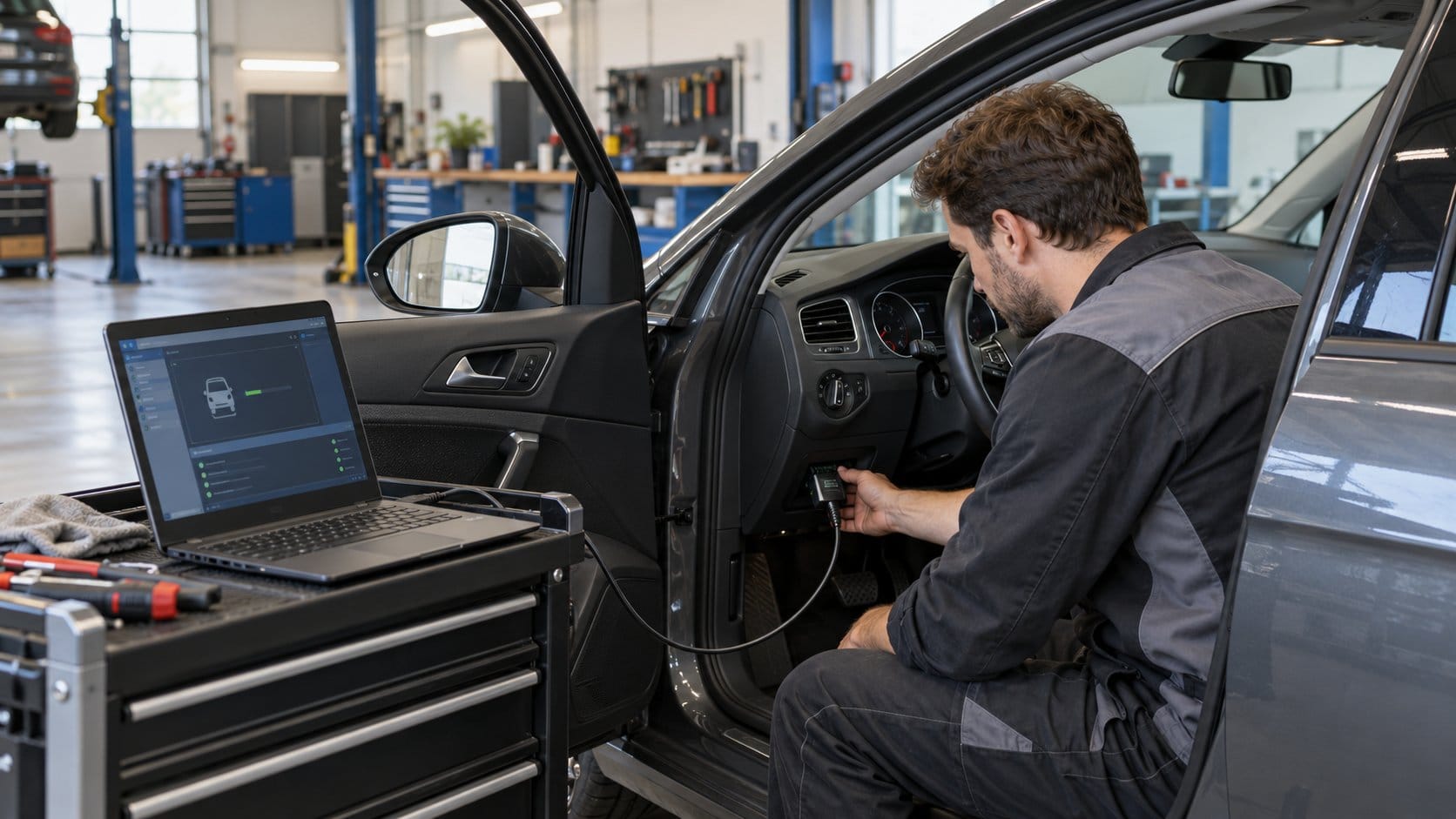
- Park the vehicle safely, apply the parking brake and switch off unnecessary electrical loads.
- Connect OP-COM firmly to the vehicle’s diagnostic socket.
- Connect the USB cable directly to the laptop.
- Turn the ignition on without starting the engine, unless a specific test instructs otherwise.
- Open OP-COM, select the exact model, model year and engine, and begin with identification or fault-code reading.
If the interface receives no power from the vehicle, inspect the relevant diagnostic-socket or accessory fuse using the vehicle manual. Do not probe connector pins without the knowledge and equipment for automotive electrical testing.
7. Check vehicle battery voltage
Low voltage can cause control modules to drop off the network. If the starter is slow or the car has been stored, charge and test the battery first. Keep voltage stable during long scans and any supported coding procedure.
Never begin programming when the laptop or vehicle battery is close to empty. A communication interruption while writing data carries much more risk than an interruption during a read-only scan.
8. Verify the selected vehicle and control module
The wrong model year, engine or module can produce “no communication” even when the interface works. Confirm the VIN, engine code and model year before selecting the vehicle.
Try communicating with more than one supported module. If OP-COM reaches the engine ECU but not the ABS module, the USB installation is probably functioning. The remaining issue may be the selected ABS variant, a module-specific fuse, wiring, or the module itself.
9. Separate a computer problem from a vehicle problem
Change one variable at a time: try another USB port, cable and then another Windows computer. If the interface passes its test on two computers but not one vehicle, focus on vehicle selection, socket power and the vehicle network. If it fails on multiple computers with the supplied package, contact the seller with screenshots.
SpeedXperts includes setup and product support with its Strumento diagnostico OPCOM per Opel. Sending the vehicle model, year, engine, Windows version and exact error message will make support faster.
Common OP-COM connection questions
Can I use OP-COM on Windows 10 or Windows 11?
The SpeedXperts interface is listed as compatible with modern Windows versions when installed with the appropriate supplied driver and software. If Windows displays a device error, diagnose that error in Device Manager before changing OP-COM settings.
Should I update OP-COM online?
No. Do not apply an online or third-party firmware update unless the supplier confirms that it matches your exact hardware. Use the provided package and request support if the software reports a firmware mismatch.
Why can OP-COM access some modules but not others?
This usually points away from a USB-driver failure. Check the vehicle configuration, then investigate module power, wiring, network faults and tool coverage.
Final checklist
Start by confirming that Windows recognizes the interface, install the correct supplied driver, run the interface test and avoid unverified updates. Then connect to the vehicle with the ignition on, verify the exact model and engine, and check battery voltage and diagnostic-socket power. This method prevents random software changes and helps you locate the failed link quickly.
If you need deeper access to Opel or Vauxhall systems than a generic scanner provides, explore the SpeedXperts OP-COM PIC18F458 diagnostic interface or compare it with other options in the diagnostic tools collection.